UltimatePerfSwitch — a System Tray App That Fights Windows for Your Performance
I built a system tray app that toggles the hidden Ultimate Performance power plan on Windows 11 — and automatically re-creates it when Windows silently removes it.
I sometimes need maximum performance on Windows 11 — compiling large projects, running local models, gaming. The Ultimate Performance power plan does exactly that, but Microsoft hides it on consumer PCs and Windows keeps deleting it after reboots.
I got tired of running powercfg -duplicatescheme e9a42b02-d5df-448d-aa00-03f14749eb61 over and over, so I built UltimatePerfSwitch — a tray app that handles it all.
What it does
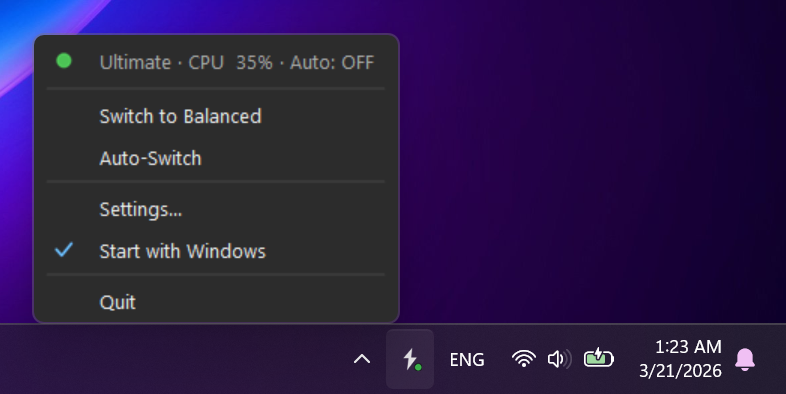 Context menu with status, toggle, and auto-switch controls
- One-click toggle between Ultimate Performance and Balanced
- Auto-switch — monitors CPU load and switches to Ultimate when sustained high usage is detected, back to Balanced when idle
- Auto-restore — checks every 30 seconds if Windows removed the plan, re-creates it automatically
- Configurable thresholds — high/low CPU %, sustain duration before switching
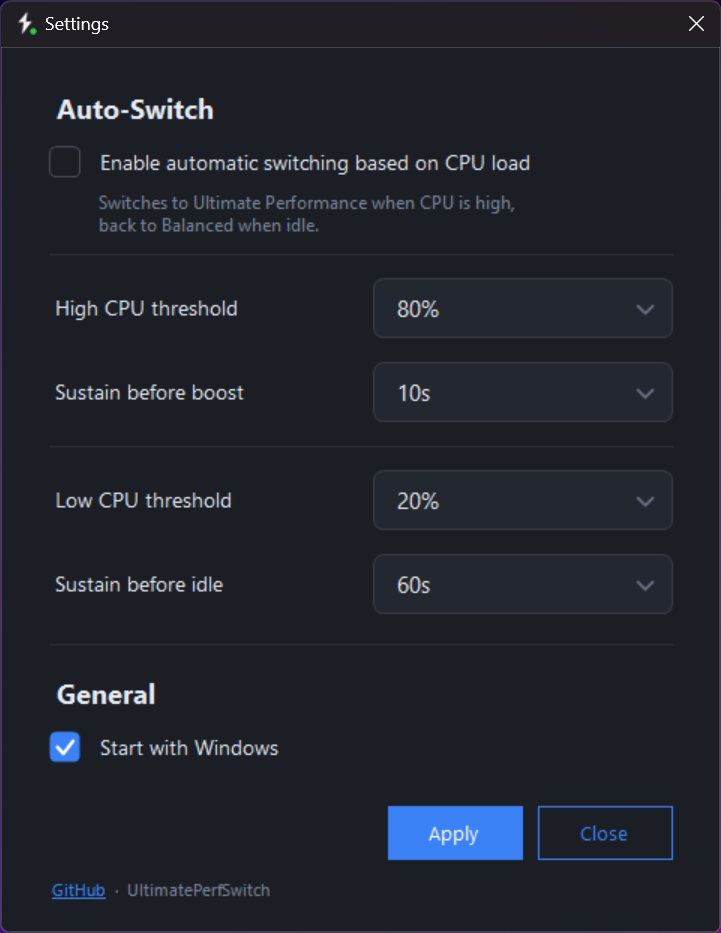 Docker-style dark settings dialog with custom controls
Why does Windows keep removing it?
This is the part that surprised me. The plan isn’t technically deleted — it’s hidden by policy. The duplicated copy gets removed because it’s not a system-protected plan. Several things cause this:
- Modern Standby — most modern machines use S0 Low Power Idle. When enabled, Windows hides all power plans except Balanced and only shows the “Power mode” slider. Ultimate Performance conflicts with this model.
- Windows Updates — feature updates (like 24H2) reset power configuration and re-apply policies that hide custom plans. Users reported plans disappearing after April 2025 updates.
- It’s not for consumers — Microsoft only ships Ultimate Performance visible on Windows Pro for Workstations. On Home/Pro, the
duplicateschemecommand creates a copy that Windows treats as unauthorized. - OEM policies — laptop manufacturers ship Group Policy settings that override non-standard plans during boot.
Microsoft’s reasoning is fair — constant full-frequency operation drains batteries and generates heat. But for desktop users who want it, the plan shouldn’t just vanish.
The app solves this by checking every 30 seconds and re-creating the plan. No matter how many times Windows removes it, it comes back.
The auto-switch FSM
The core logic is a finite state machine that prevents rapid switching:
1
2
Balanced → CPU > 80% for 10s → Ultimate Performance
Ultimate Performance → CPU < 20% for 60s → Balanced
If CPU drops below the threshold during the wait, the timer resets. This avoids flipping back and forth during bursty workloads.
Building the dark UI — lessons from fighting WinForms
I wanted the app to look like Docker Desktop’s tray menu — dark theme, rounded corners, crisp text. WinForms made this harder than expected. Here’s what I learned.
Text rendering on dark backgrounds
WinForms defaults to GDI+ DrawString with ClearType. ClearType uses RGB subpixel rendering that’s designed for light backgrounds — on dark backgrounds it produces visible colored fringing that looks blurry.
The fix: use GDI TextRenderer.DrawText everywhere. It uses grayscale anti-aliasing that renders clean on any background.
Rounded corners without artifacts
My first attempt used Region clipping with a rounded GraphicsPath. It clips the corners, but the underlying window background is white — so you get white pixel artifacts at each corner.
The real solution: Windows 11’s DWM API.
1
DwmSetWindowAttribute(hwnd, DWMWA_WINDOW_CORNER_PREFERENCE, ref DWMWCP_ROUND, sizeof(int));
This lets the compositor handle the rounding with proper alpha transparency. Same approach Docker uses.
Custom controls over themed native ones
Native WinForms CheckBox, ComboBox, and NumericUpDown can’t be fully themed dark. I tried — the results were always jarring. The fix was building fully custom owner-drawn controls:
- DarkCheckBox — rounded rectangle, blue fill with white checkmark
- DarkDropdown — rounded border, chevron, dark popup list with DWM rounded corners, default values highlighted in accent blue
- Buttons — solid blue primary, outlined blue secondary (matching Docker’s Apply/Close)
More work upfront, but the result is dramatically better than trying to style native controls.
Menu positioning and dismiss behavior
Three non-obvious gotchas with manually-shown ContextMenuStrip:
SetForegroundWindowmust be called beforeShow()— without it, clicking outside won’t dismiss the menuWS_EX_TOOLWINDOWinCreateParamsprevents a phantom taskbar icon from appearingAutoClose = falsekeeps the menu open when clicking action items (toggle, auto-switch) — only Settings and Quit close it explicitly
Tech stack
- C# .NET 9 WinForms — no NuGet dependencies, single-file self-contained exe
- 10 source files, each with one responsibility
- CI/CD — GitHub Actions builds on tag push, attaches exe to a GitHub Release
- Versioning —
YY.MM.patchformat (current:26.3.0)
The entire app is ~1,500 lines of C#. No installer needed — just download and run UltimatePerfSwitch.exe.
Get it
- GitHub: vlytvynchyk/ultimate-perf-switch
- Download: grab
UltimatePerfSwitch.exefrom the Releases page
Next, I’m going to add GPU load monitoring as an additional trigger for the auto-switch — useful for rendering and ML workloads.